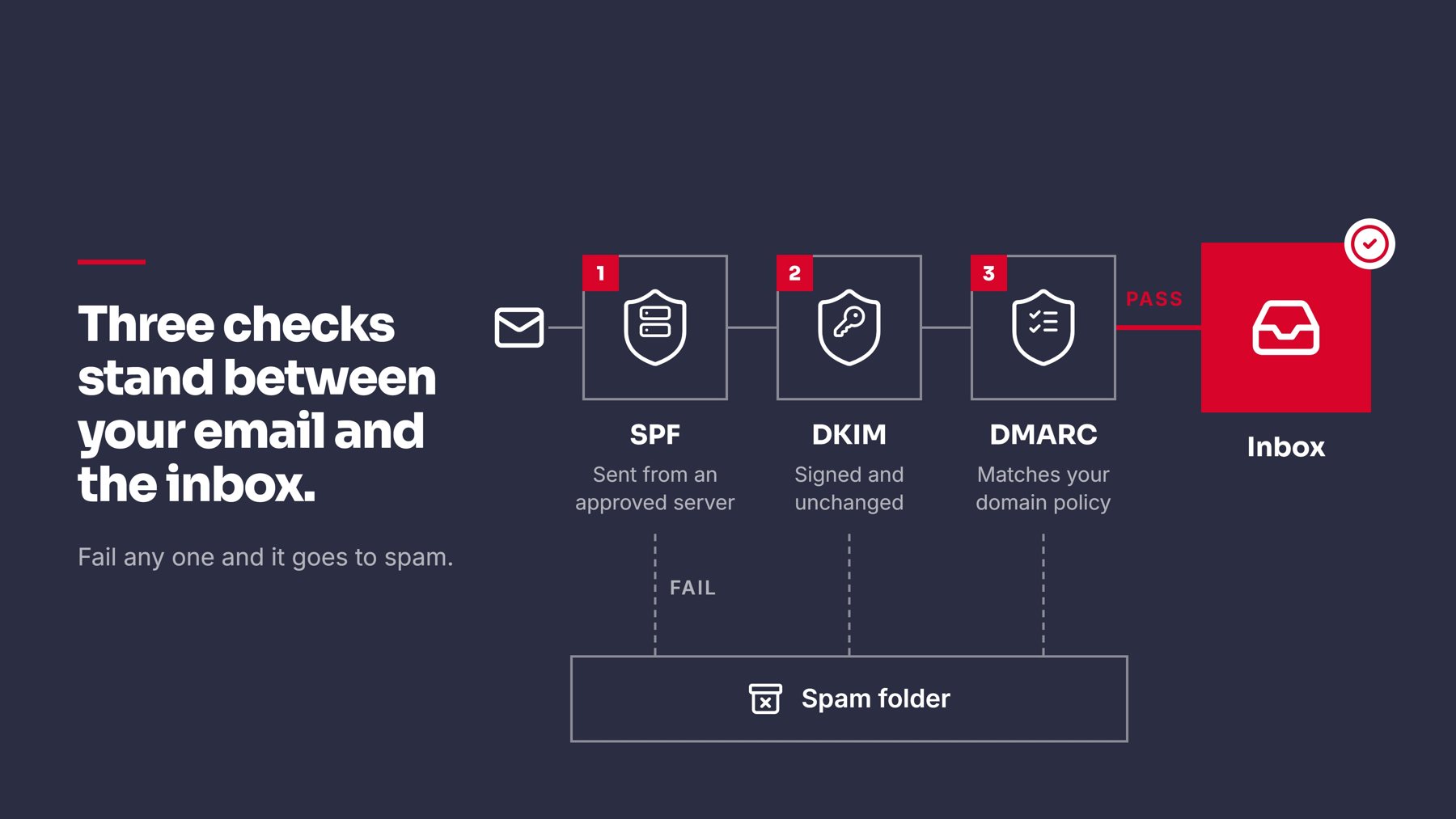
A cold email campaign can fail before the first message goes out. Often the cause is a setup step that got skipped. This walkthrough covers the order that works.
Before You Open Instantly
Two things need to be in place first:
- A sending domain with authentication set up. SPF, DKIM, and DMARC should pass. If you haven’t checked, start with our guide to fixing DKIM, SPF, and DMARC errors.
- A defined audience. Know who you are emailing and why they would care right now. A good tool can’t fix a list nobody wants to hear from.
Step-by-Step Setup
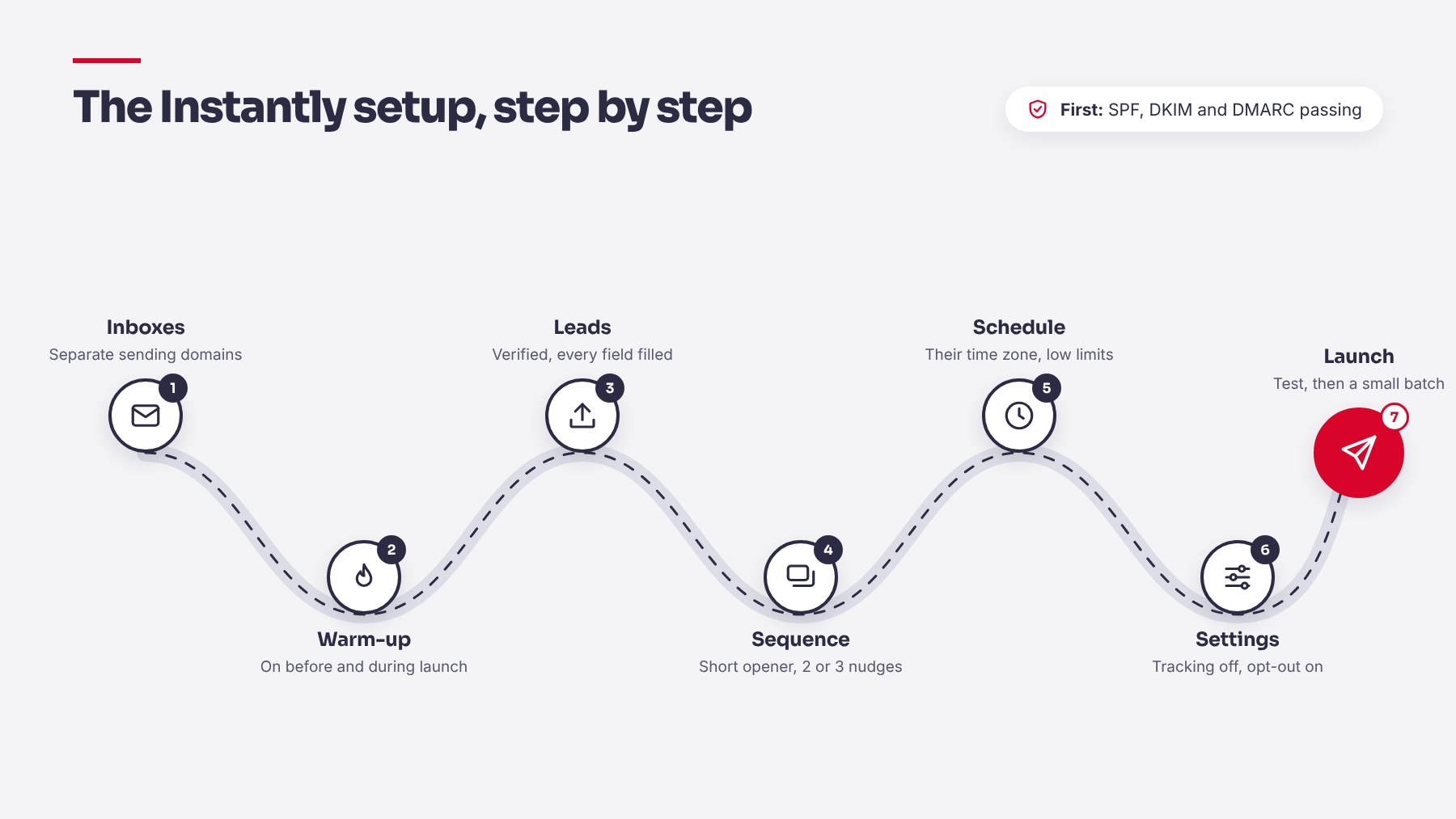
- Connect your email accounts. Add each sending inbox through the Google, Microsoft, or IMAP option. Use separate sending domains rather than your main company domain, so any reputation problem stays contained.
- Turn on warm-up. New inboxes need a gradual build of sending history. Instantly includes a warm-up feature. Leave it running before and during early campaigns. Our domain warm-up checklist covers the timing in more detail.
- Create the campaign and add leads. Upload a CSV or connect your lead source. Check that first names, company names, and any custom fields are filled in for every row, and verify the list before you upload it. Blank fields turn into broken emails.
- Write the sequence. Keep the first email short and specific, with one real detail about the company. Add two or three follow-ups spaced a few days apart. Each follow-up should add something new, not just ask if they saw the last one.
- Set the schedule and sending limits. Choose sending days and hours that match your prospects’ working time zone. Keep the daily limit per inbox modest, especially early on.
- Review the settings that affect deliverability. Many senders turn off open and link tracking, since tracking pixels and rewritten links can hurt inbox placement. Include a simple way to opt out.
- Send a test and launch. Send a test to a personal inbox on Gmail and Outlook. Check how it renders on a phone. Then launch with a small batch first.
What to Watch After Launch
- Bounce rate, which tells you about list quality
- Reply rate and the type of replies you get
- Any sudden drop in replies, which can signal a placement problem
Google’s Postmaster Tools shows your domain reputation and spam rate once you send enough volume to Gmail users. Instantly’s own help center is the best place to confirm current feature names, since the interface changes over time.
Quick Checklist
- Domain authentication passing
- Separate sending domain and connected inboxes
- Warm-up running
- Lead fields complete
- Short first email with relevant follow-ups
- Conservative daily limits
- Test email checked on desktop and mobile
Closing
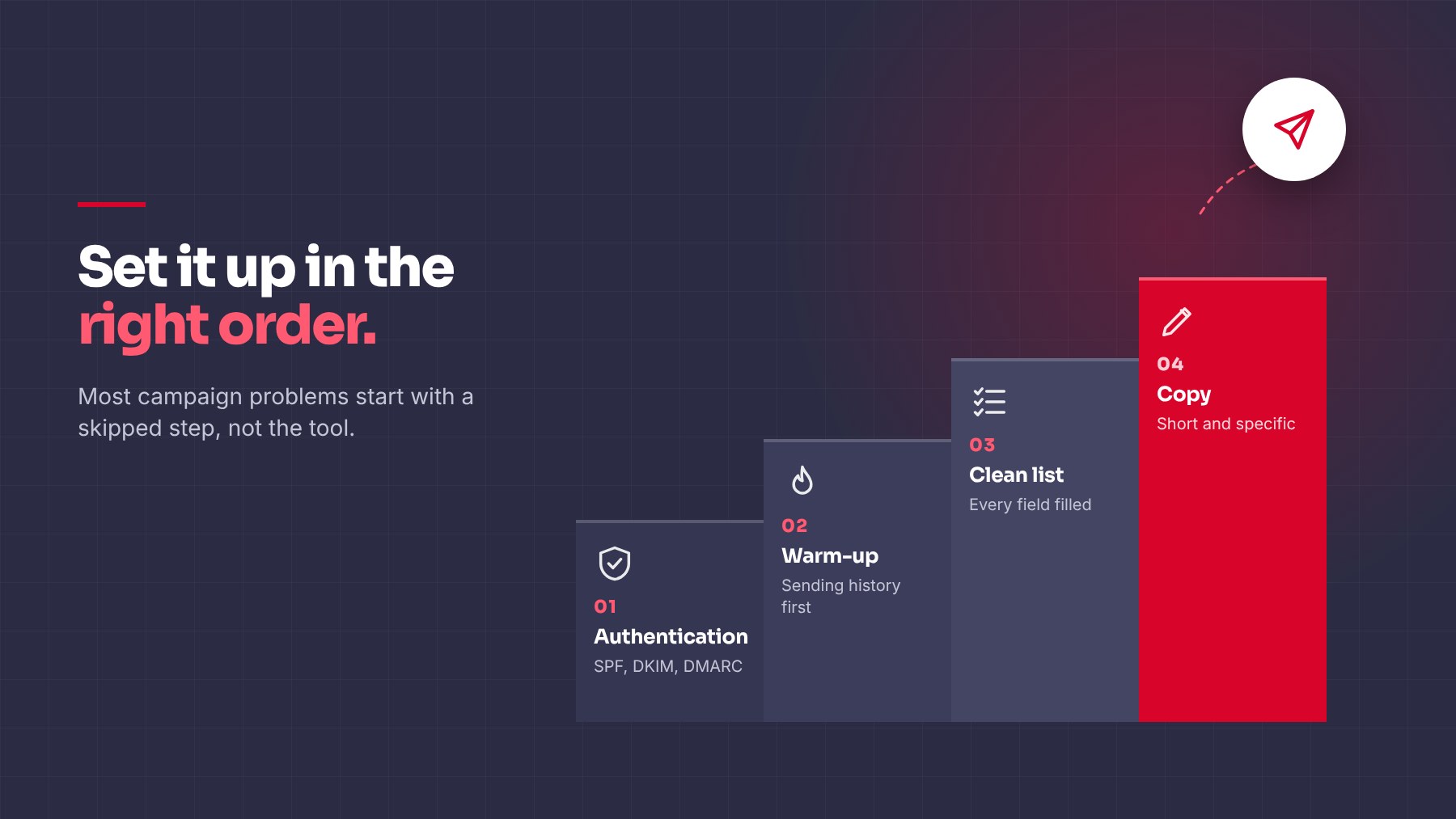
Campaign setup is mostly about sequence. Authentication first, warm-up second, a clean list third, and only then the copy. Problems blamed on the tool often come from skipping one of those steps. If you want a second opinion on your setup before you launch, we’re happy to look at it.
Share this article